Hidden Gigabytes: How Google Chrome’s On-Device Gemini Nano AI Consumes Your Computer Storage and How to Reclaim It

Google Chrome has long faced scrutiny from users and system administrators alike for its aggressive consumption of system resources. Beyond the familiar complaints regarding random access memory (RAM), central processing unit (CPU) cycles, battery drainage, and an abundance of open browser tabs, a new category of resource utilization has quietly emerged. As artificial intelligence becomes deeply integrated into everyday browsing experiences, Google Chrome is now laying claim to a significant portion of user hard drive space. For users monitoring their storage allocation closely, this digital footprint can come as an unwelcome surprise.
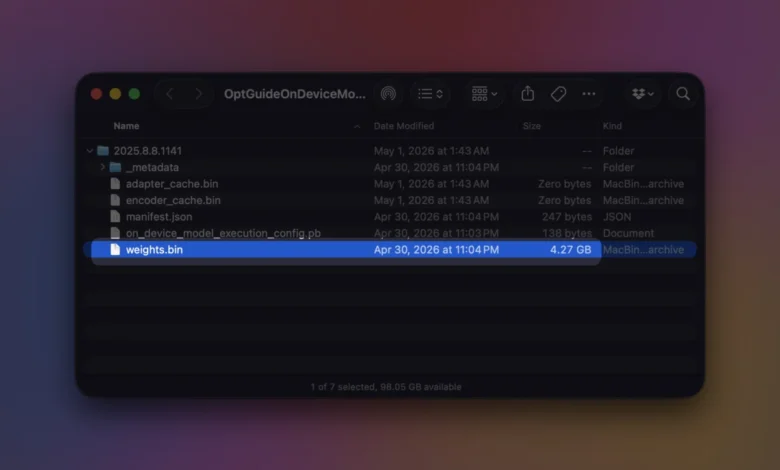
At the center of this storage allocation is a single, bulky file designated as weights.bin. Located deep within Chrome’s browser data directories under a specialized folder named OptGuideOnDeviceModel, this file acts as the repository for Gemini Nano. Gemini Nano is Google’s lightweight, on-device large language model designed specifically to run locally on desktop and laptop hardware rather than relying entirely on remote cloud servers. While local execution yields distinct advantages regarding latency and privacy, it requires the browser to permanently house gigabytes of neural network weights directly on the host machine.
The Architectural Shift Toward Local AI Processing
To understand why Google Chrome is suddenly downloading massive model files onto personal computers, one must examine the broader architectural shift currently taking place across the technology sector. For years, consumer-facing artificial intelligence features functioned almost exclusively in the cloud. When a user submitted a prompt, requested a text summary, or utilized a translation tool, the data was transmitted securely to a remote data center, processed by massive server-grade graphics processing units (GPUs), and sent back to the local browser.
While cloud-based processing allows for exceptionally powerful models, it introduces notable drawbacks: network latency, continuous internet dependency, and potential privacy vulnerabilities stemming from third-party data transmission. To mitigate these concerns, software developers have increasingly turned to on-device generative AI. By running smaller, highly optimized models locally on user hardware, applications can deliver instantaneous responses while keeping sensitive user data entirely contained within the local device environment.
In the case of Google Chrome, Gemini Nano serves as the foundational engine powering a suite of native browser utilities. These include intelligent writing assistance, automated tab organization, real-time scam warnings, comprehensive page summaries, advanced autofill capabilities, and specialized developer utilities integrated directly into Chrome DevTools AI assistance. Because these features operate locally to ensure speed and privacy, the browser must store the underlying neural network parameters directly on the local storage drive.
Verifying Storage Consumption and Locating the Files
For users attempting to diagnose sudden reductions in available disk space, identifying the presence of Chrome’s local AI architecture requires navigating specific internal browser channels or system directories. Google provides a dedicated internal diagnostic page that allows advanced users and curious consumers to inspect the current state of local generative models. By typing a specific internal URI into the Chrome address bar, users can access real-time status reports.
The internal diagnostic tool can be accessed by navigating to:
chrome://on-device-internals
This interface displays whether the model has been successfully downloaded, its exact version number, memory allocation metrics, and current operational status. For those who prefer manual verification through the operating system file explorer, the files are stored in predictable directories that vary depending on the host operating system.
On Windows operating systems, the model files typically reside within the local application data directory:
C:UsersAppDataLocalGoogleChromeUser DataOptGuideOnDeviceModelweights.bin
On macOS environments, the directory structure follows a similar hierarchy within the user library:
~/Library/Application Support/Google/Chrome/OptGuideOnDeviceModel//weights.bin
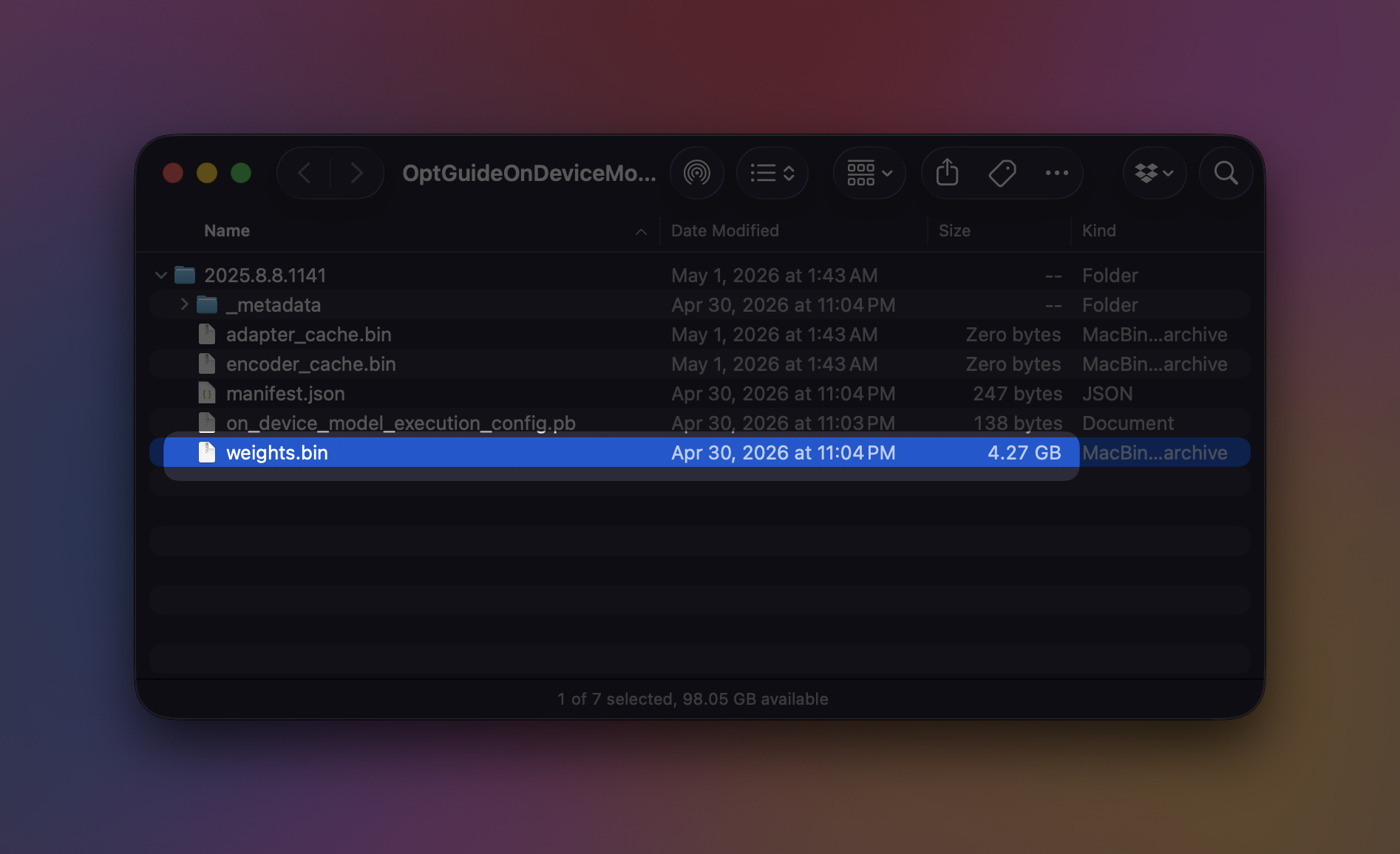
It is important to note that the specific version folder nomenclature will dynamically update as Google pushes background revisions and model optimizations through standard browser update cycles. Consequently, the physical file size of weights.bin is not static; it fluctuates depending on updates released by Google’s engineering teams to improve model accuracy, efficiency, or feature sets.
System Requirements and Hardware Prerequisites
Google has established explicit hardware and storage thresholds to ensure that local artificial intelligence features do not compromise overall system stability. According to official developer documentation and support resources, the integration of Gemini Nano via Chrome’s native APIs targets specific operating system environments. Supported platforms include Windows 10 and Windows 11, macOS 13 (Ventura) and later iterations, Linux distributions, and Chromebook Plus devices featuring capable local processors and dedicated accelerators.
Furthermore, storage capacity plays a critical filtering role in determining whether a machine is deemed suitable for background model deployment. Google’s system guidelines indicate that a Chrome user profile volume must maintain a minimum threshold of 22 gigabytes of free disk space for the on-device AI framework to deploy and operate smoothly.
This requirement acts as a safeguard against storage exhaustion. If a user’s available disk space drops beneath Google’s specified threshold following the initial model download, automated protocols may trigger the removal of the local model files to preserve operating system integrity. Once storage conditions improve and hardware prerequisites are once again met, the browser may autonomously re-download the model files in the background to restore full AI functionality.
Managing and Removing On-Device AI Models
While automated model deployment is designed to keep features instantly accessible, users who prioritize maximal storage retention or who have no intention of utilizing browser-based generative AI tools maintain the right to disable these systems entirely. Simply locating and deleting the weights.bin file manually is generally ineffective; if the underlying feature toggles remain active within the browser settings, Chrome will interpret the missing file as a corrupted or incomplete installation and automatically initiate a fresh download.
To permanently remove the on-device AI models and prevent future background downloads, users must deactivate the functionality through the main browser configuration menu. By navigating to the browser settings and locating the experimental or native artificial intelligence sub-menus, users can switch off the primary "On-device AI" toggle.
According to Google’s official documentation, disabling this setting forces the browser to purge the locally stored generative models from the system directories. While any features relying directly on Gemini Nano will immediately cease to function, the core web-browsing capabilities of Google Chrome will remain entirely unaffected, ensuring standard operational performance for everyday web navigation.
Implications for System Administrators and Everyday Users
The integration of foundational AI models directly into mainstream consumer applications marks a permanent evolution in how software interacts with local hardware. While the benefits of instant text generation, enhanced security warnings, and localized data privacy are substantial, they introduce new management challenges for both individual consumers and enterprise IT administrators.
For individual users—particularly those operating modern lightweight laptops equipped with limited solid-state drive (SSD) configurations, such as standard 256GB models—sacrificing several gigabytes of storage to a browser background process requires conscious evaluation. Users must weigh the everyday convenience of automated page summaries and writing assistance against the tangible cost of diminished local storage capacity.
For enterprise environments, managed devices, and educational institutions, the silent background downloading of multi-gigabyte model files can introduce bandwidth and storage coordination hurdles. Fortunately, enterprise administrators typically retain centralized control through group policies, allowing organizations to restrict or disable resource-intensive local AI features across fleets of corporate or institutional workstations.
Ultimately, transparency regarding resource consumption remains paramount. As software developers increasingly embed artificial intelligence into the fabric of daily computing tools, providing clear visibility into storage utilization—such as Chrome’s dedicated internal diagnostic tools—ensures that users retain ultimate autonomy over their personal hardware environments. Whether to embrace local AI acceleration or reclaim valuable gigabytes of disk space is a choice that now rests squarely in the hands of the user.