Google Chrome Is Secretly Eating Gigabytes of Your Hard Drive Space With Its On-Device AI Models

Google Chrome has long faced public scrutiny for its heavy resource consumption, frequently criticized by users and developers alike for monopolizing system memory, draining battery life, and consuming substantial CPU cycles to maintain active tabs. However, a less-publicized footprint has recently emerged that extends far beyond RAM and processor utilization: persistent local storage allocation. As Google integrates generative artificial intelligence directly into its browser architecture, Chrome is quietly downloading several gigabytes of model files onto user computers to power localized features without sending every user prompt to cloud servers.
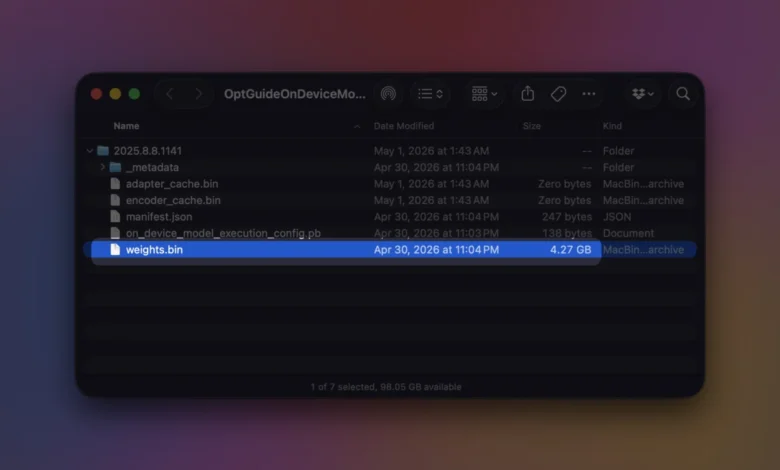
At the center of this silent storage expansion is a large binary file designated as weights.bin. Buried deep within Chrome’s browser data directory inside a specialized directory labeled OptGuideOnDeviceModel, this massive file serves as the foundational data structure for Gemini Nano, Google’s proprietary, lightweight on-device AI model tailored specifically for desktop and laptop environments. While users seeking a lean browsing experience are generally accustomed to managing browser extensions, cache data, and open tabs, the invisible arrival of multi-gigabyte AI model weights presents a novel storage challenge, particularly for owners of modern ultrabooks and laptops equipped with limited solid-state drive (SSD) capacities.
Understanding the Genesis of Chrome’s Local AI Infrastructure
The deployment of on-device AI models represents a fundamental strategic shift in how web browsers interact with machine learning workloads. Historically, advanced browser-based AI functionalities—such as automated text generation, intelligent translation, and semantic search—relied heavily on cloud-based server infrastructure. When a user initiated a query or requested a webpage summary, the browser transmitted the relevant data to remote data centers, where powerful server-grade hardware processed the request and returned the result.
While cloud processing allowed for highly capable AI responses, it introduced distinct trade-offs regarding latency, network connectivity dependence, and user data privacy. To mitigate these concerns, technology companies have increasingly pivoted toward on-device processing. By running lightweight models locally on consumer hardware, browsers can execute tasks instantaneously without an active internet connection, while simultaneously ensuring that sensitive user data—such as form inputs, draft messages, and personal browsing habits—never leaves the local machine.
To facilitate this architecture within Chrome, Google engineered Gemini Nano to operate directly on the client side. According to official developer documentation and support disclosures provided by Google, Chrome automatically downloads these generative AI models in the background to ensure that integrated tools remain instantly accessible upon user demand. Because the model must reside locally to function offline and deliver real-time responsiveness, it permanently claims a notable portion of the user’s primary storage volume.
Core Features Powered by Gemini Nano and Local Weights
The multi-gigabyte weights.bin file is not a passive artifact; it is the active computational engine behind a growing suite of native browser utilities. These features are designed to streamline the user experience across multiple facets of daily web navigation, content consumption, and digital security.
Among the most prominent capabilities driven by Gemini Nano is intelligent writing assistance. When users compose emails, forum posts, or document text within browser text fields, the local model analyzes context to suggest completions, rephrase sentences, or adjust tone. Additionally, Chrome utilizes on-device machine learning to power advanced scam and phishing warnings, analyzing page content locally to detect deceptive patterns and alert users before they interact with malicious infrastructure.
Productivity features also leverage this local architecture. Chrome employs Gemini Nano to automatically organize complex tab groups based on semantic relevance, generate concise page summaries for lengthy articles, and enhance intelligent autofill accuracy. By decentralizing these computational tasks away from cloud servers, Google enables seamless execution across supported environments, though this convenience comes at a direct cost to available disk space.
Technical Verification: How to Audit Chrome’s AI Storage Footprint
Users who suspect that Google Chrome is utilizing an excessive amount of local storage can audit their systems through specialized internal diagnostics built directly into the browser. By navigating to the internal URL chrome://on-device-internals, individuals can access a comprehensive status dashboard that details the exact installation state, operational readiness, and storage footprint of the active on-device generative AI models.
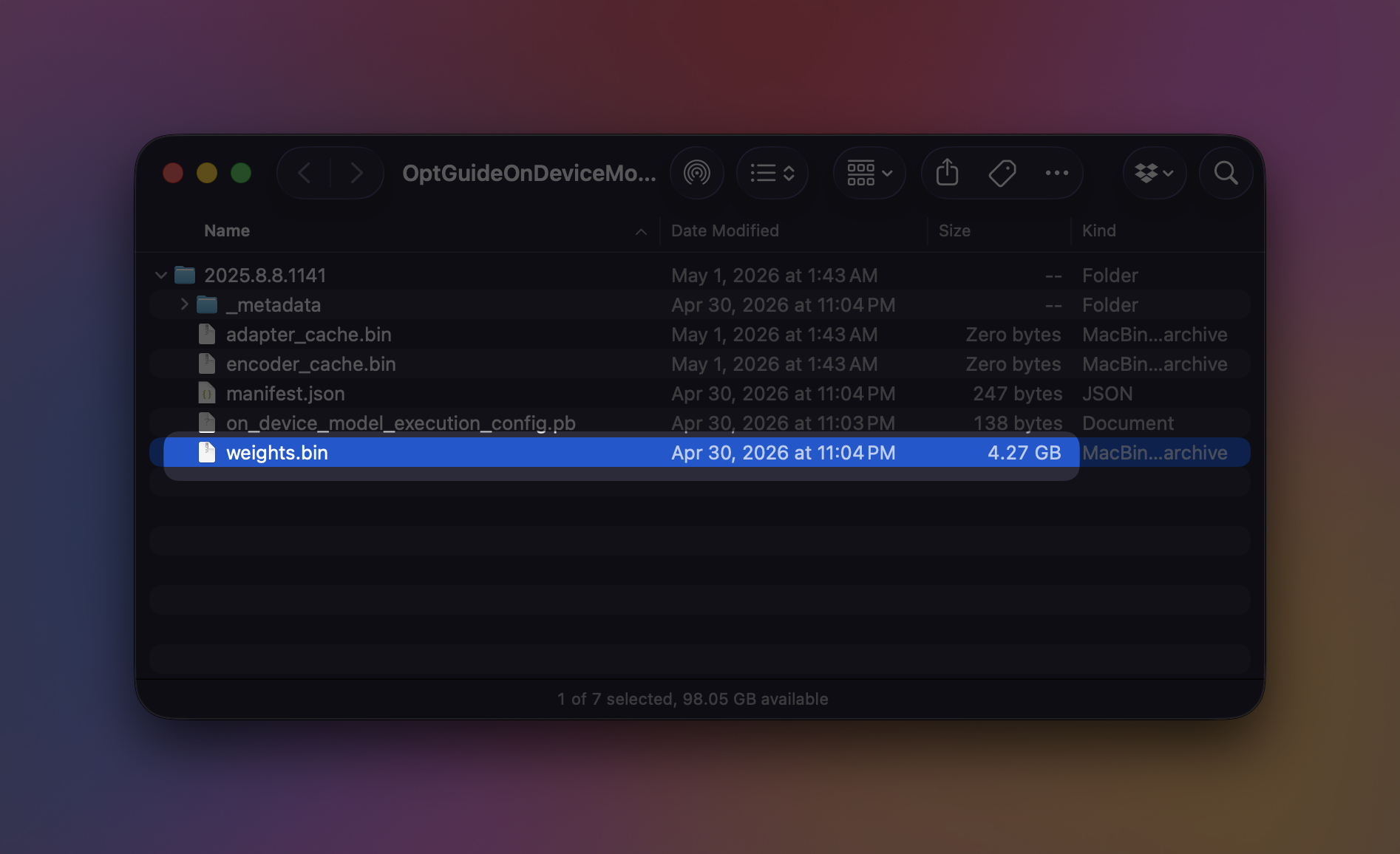
For advanced users and systems administrators who prefer manual file-system verification, the local model directories can be located within the standard application data paths of major operating systems. The exact location varies depending on the user profile and platform architecture:
- On Microsoft Windows environments, the file resides at:
C:Users<username>AppDataLocalGoogleChromeUser DataOptGuideOnDeviceModel<version>weights.bin - On Apple macOS environments, the file is located at:
~/Library/Application Support/Google/Chrome/OptGuideOnDeviceModel/<version>/weights.bin
It is important to note that the <version> directory designation is dynamic. As Google continuously updates, patches, or optimizes Gemini Nano to improve performance and expand capabilities, Chrome automatically updates these model folders, occasionally altering directory nomenclature during the synchronization process.
Hardware Prerequisites and System Constraints
Google enforces specific hardware and storage thresholds to ensure that on-device AI features operate without destabilizing the host operating system. According to official developer guidelines, the integration of Gemini Nano requires specific operating system baselines, including Windows 10 or Windows 11, macOS 13 (Ventura) or later, supported Linux distributions, or certified Chromebook Plus devices.
Furthermore, storage allocation parameters dictate whether the browser is permitted to download and retain the model. Google’s technical documentation specifies that the volume hosting the active Chrome user profile must maintain a minimum of 22 gigabytes of free disk space. If a user’s local drive drops beneath this storage threshold following the initial download of the AI model, Chrome possesses automated fallback protocols designed to purge the model files to reclaim breathing room for the operating system, downloading them anew only when system storage parameters return to acceptable levels.
It is also worth noting that these resource-intensive AI features are entirely absent in certain environments. The on-device generation capabilities do not populate on legacy hardware lacking necessary instruction sets, nor do they activate on managed corporate, educational, or institutional browser instances where system administrators have restricted background synchronization and feature flags.
Step-by-Step Guide to Disabling and Removing On-Device AI Models
Users who determine that the utility of local AI features does not justify the multi-gigabyte storage tax can permanently disable the functionality and purge the associated model files from their systems. Crucially, industry experts and support documentation emphasize that users should never attempt to reclaim space by manually deleting the weights.bin file from the directory tree. Because Chrome views the model as an essential component of an enabled feature set, manual deletion of the binary will typically prompt the browser to recognize a missing dependency and automatically re-download the gigabytes of data in the background.
Instead, removal must be executed through the official browser configuration interface:
- Launch Google Chrome and click the three-dot menu icon in the upper-right corner.
- Select Settings from the drop-down menu.
- Navigate to the Performance or AI Features section, depending on the current stable Chrome build version.
- Locate the toggle switch labeled On-device AI or individual feature sub-settings governing writing assistance, history search, and tab organization.
- Switch the toggle to the Off position.
Google confirms that disabling this master setting instructs the browser to cleanly purge the generative AI model files from local storage. While any dependent features—such as automated summarization and localized text assistance—will immediately cease to function, core browser operations, extension compatibility, and standard web rendering will continue unaffected.
Broader Implications for Browser Architecture and Consumer Storage
The quiet emergence of multi-gigabyte browser models highlights a broader evolution in consumer computing, where the boundary between operating system utilities and web application data continues to blur. As artificial intelligence becomes a mandatory battleground for major technology firms, software developers are increasingly shifting computational burdens onto end-user hardware.
For high-end desktop systems equipped with multi-terabyte solid-state drives, a two-to-four-gigabyte model allocation is largely negligible. However, for budget-conscious consumers, educational institutions, and enterprise fleets utilizing entry-level laptops with modest 256GB storage configurations, hidden background downloads represent a tangible management hurdle. As web browsers evolve from lightweight document viewers into heavy, localized AI execution environments, transparency regarding resource allocation and storage consumption will remain an essential consideration for users striving to maintain optimal system performance.