
Unveiling the Hidden Storage Footprint: Google Chrome’s On-Device AI Models Consume Gigabytes of User Data

Google Chrome, the ubiquitous web browser, is silently consuming significant storage space on user devices, not just through its traditional memory, battery, and CPU demands, nor the ever-expanding number of open tabs. A deeper dive into the browser’s architecture reveals that its burgeoning on-device Artificial Intelligence (AI) features, powered by Google’s Gemini Nano model, can occupy several gigabytes of disk space. This previously unacknowledged storage burden has prompted scrutiny from users concerned about optimizing their device’s performance and available capacity. While general tips for streamlining Chrome remain relevant, understanding and managing this specific AI-related storage is becoming increasingly crucial for maintaining a lean digital environment.
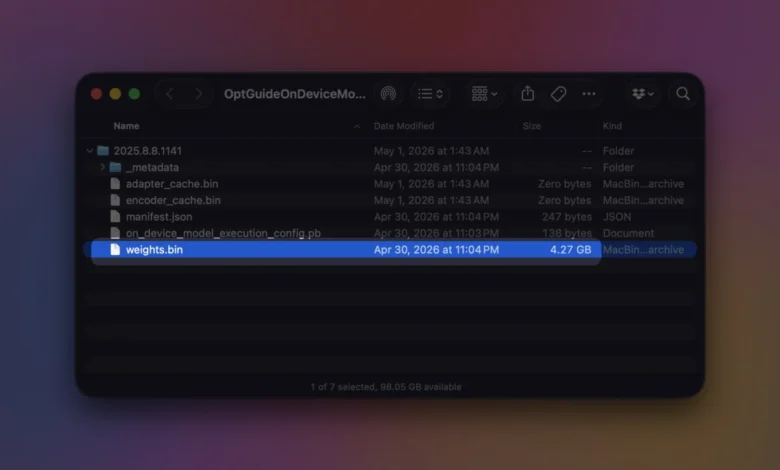
At the heart of this storage consumption lies a specific file: weights.bin. This critical component is embedded within Chrome’s browser data directory, specifically residing in a subfolder named OptGuideOnDeviceModel. Its presence is intrinsically linked to Gemini Nano, Google’s advanced on-device AI model designed to enhance a variety of Chrome functionalities directly on the user’s machine. This localized processing is the primary driver behind the substantial file size, as the entirety of the AI model needs to be stored and accessible for offline operation.
The weights.bin file is not merely an inert data dump; it is the engine powering a suite of intelligent features that aim to elevate the user experience. These include sophisticated writing assistance tools, proactive scam warnings designed to protect users from online threats, intelligent tab organization that can declutter browsing sessions, the ability to generate concise page summaries, enhanced autofill capabilities for forms, and a range of other suggestion-based tools. The fundamental principle is that for Chrome to execute AI models locally, it must first download and store those models on the user’s device.
The Rationale Behind Local AI Model Deployment
Google’s strategic decision to enable on-device AI functionalities within Chrome stems from a multifaceted approach to user experience, privacy, and efficiency. By allowing these AI features to run directly on the user’s device rather than relying solely on cloud-based processing, Google aims to achieve several key objectives.
Foremost among these is the enhancement of user privacy. When sensitive data or complex computational tasks are processed locally, the need to transmit this information to external servers is significantly reduced. This minimizes the potential for data interception or unauthorized access during transit, offering users a greater sense of security regarding their personal information. The localized processing ensures that certain computations occur within the secure confines of the user’s own hardware.
Furthermore, Google’s official Chrome Help page indicates that the browser may download these on-device generative AI models in the background. This proactive approach ensures that the related AI-powered features are always ready for immediate use, without the latency associated with fetching them from the cloud on demand. This seamless integration is designed to make the AI features feel like an inherent part of the browser, rather than an add-on service. Complementing this, Google’s developer documentation elaborates on the dynamic nature of Gemini Nano’s size, noting that its exact footprint can fluctuate as Chrome undergoes updates and optimizations for the model. This suggests a continuous refinement process aimed at improving performance and efficiency, which can also influence storage requirements.
Monitoring Chrome’s On-Device AI Storage Footprint
For users keen on understanding and managing the storage allocated to Chrome’s on-device AI, a dedicated internal Chrome page provides a clear overview. By navigating to chrome://on-device-internals within the browser, users can access detailed information about the status and size of these AI models. This URL serves as a central hub for monitoring the digital footprint of Gemini Nano and its associated components.
This internal diagnostic page is particularly valuable for users who notice a sudden and unexplained decrease in their device’s free storage space. If they are actively utilizing Chrome’s AI-powered features, such as advanced writing aids or intelligent tab management, a quick check of chrome://on-device-internals can often pinpoint the AI models as the primary culprit. For developers and technically inclined users, this page also offers insights into the inner workings of Chrome’s AI features, providing a glimpse into how Gemini Nano integrates with the browser’s functionalities. They can further explore the AI assistance capabilities within Chrome DevTools, offering a deeper understanding of the AI’s role in development workflows.
Beyond the internal Chrome interface, users can also manually inspect their local file system to verify the presence and size of the AI model files. This involves navigating to specific directories within Chrome’s user data folder. The precise path varies depending on the operating system:
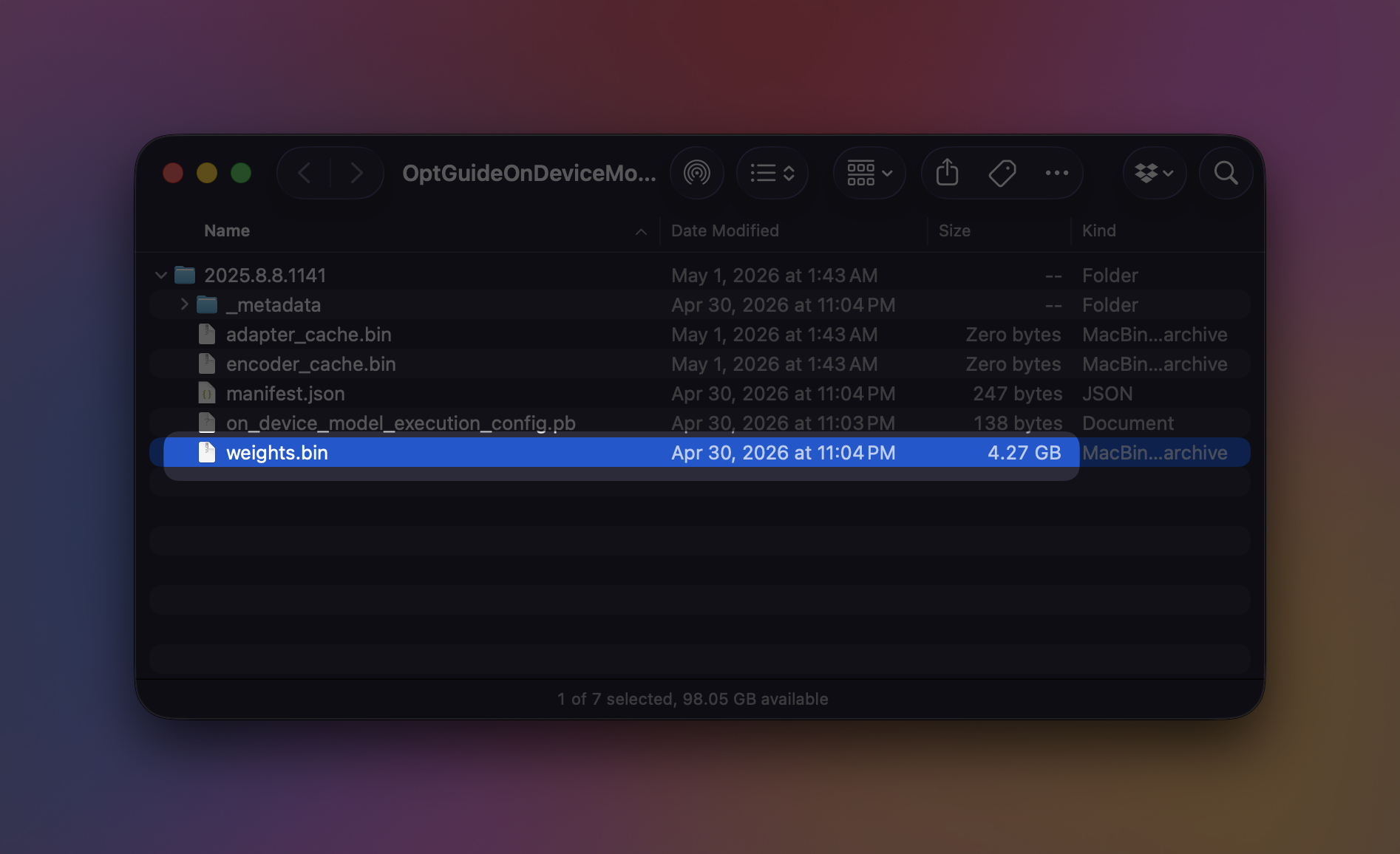
- On Windows: Users can typically find the relevant files at
C:Users<username>AppDataLocalGoogleChromeUser DataOptGuideOnDeviceModel<version>weights.bin. - On macOS: The path is generally located at
~/Library/Application Support/Google/Chrome/OptGuideOnDeviceModel/<version>/weights.bin.
It is important to note that the <version> folder name is dynamic and can change with each Chrome update that modifies or replaces the AI model. This necessitates careful attention to the folder structure when manually checking storage.
Managing and Removing On-Device AI Models
For users who do not actively engage with Chrome’s local AI features or wish to reclaim storage space, disabling these functionalities is a straightforward process. Within Chrome’s settings, a dedicated toggle labeled "On-device AI" or a similar designation allows users to opt out of these capabilities. Google explicitly states that deactivating this setting will result in the removal of the on-device generative AI models from the user’s system. Consequently, any features that depend on these models will cease to function, but the core functionality of the Chrome browser will remain unaffected and operational.
Crucially, users are advised against manually deleting the weights.bin file or its associated directory. Such direct file manipulation, without disabling the feature through Chrome’s settings, can lead to unintended consequences. If the AI features remain enabled in the browser’s configuration, Chrome may automatically re-download the model files, negating the effort to free up space and potentially causing further storage concerns. A systematic approach through the browser’s settings is the recommended method for removal.
Understanding Setting Visibility and System Requirements
The absence of the "On-device AI" toggle in Chrome settings can be attributed to several factors. Primarily, it may indicate that the user’s device does not meet the hardware or software prerequisites for running Chrome’s local AI features. Alternatively, the feature might not have been fully rolled out to the user’s specific Chrome profile, or the browser might be under the management of an organization, such as a school or company, which could restrict certain advanced features.
Google’s developer documentation outlines the stringent hardware and storage requirements for leveraging Gemini Nano and related AI capabilities. For Windows, support is generally available on Windows 10 or 11. macOS users typically require macOS 13 or later. Linux and Chromebook Plus devices are also listed as compatible platforms for the APIs that utilize Gemini Nano. Beyond operating system compatibility, a significant storage prerequisite is mandated: the Chrome profile volume must possess at least 22GB of free space for the AI models to be effectively stored and utilized.
In scenarios where a user’s system storage dips below Google’s specified threshold after the AI model has been downloaded, the company has indicated that the model may be automatically removed. It can then be re-downloaded at a later juncture when the storage requirements are once again met. For users seeking to optimize their overall disk space, and not solely focused on AI models, a comprehensive disk space analysis tool for Windows can be invaluable in identifying other large files or applications consuming significant storage.
Navigating the Decision: To Keep or To Turn Off?
The decision of whether to retain Chrome’s on-device AI features or to disable them hinges on individual usage patterns and storage considerations.
Users who benefit from and actively utilize Chrome’s AI-powered functionalities may find it advantageous to keep these features enabled. This includes those who rely on the browser’s writing assistance for composing emails or documents, appreciate the efficiency of automatic page summaries, value the security provided by scam detection, benefit from intelligent tab organization, or are developers leveraging AI features within Chrome DevTools. For users with ample storage capacity, the convenience and enhanced functionality offered by these AI tools often outweigh the storage cost.
Conversely, users who rarely or never engage with these specific AI-driven features might consider disabling them to reclaim valuable disk space. While a few gigabytes might seem insignificant on a desktop computer equipped with a terabyte-sized Solid State Drive (SSD), this space can become a critical constraint on devices with smaller storage capacities, such as 256GB laptops. In such cases, freeing up several gigabytes can significantly improve overall system performance and provide more room for essential applications and user files.
The recommended approach for making this decision involves a two-step process: first, navigate to chrome://on-device-internals to ascertain whether the AI model is currently installed and its approximate size. Second, based on this information and an honest assessment of feature utilization, users can then decide whether to keep the "On-device AI" setting enabled or to disable it via Chrome’s settings menu. This informed approach ensures that users can tailor their Chrome experience to their specific needs and hardware limitations, optimizing both functionality and storage efficiency. The ongoing evolution of AI in browsers presents a dynamic landscape, and staying informed about these storage implications is paramount for maintaining a well-managed digital environment.