Google Chrome is quietly eating up gigabytes of your hard drive with hidden AI files, and you probably didn’t even notice.

Google Chrome is known for consuming significant system resources, historically drawing criticism for its heavy utilization of random-access memory (RAM), battery life, Central Processing Unit (CPU) cycles, and open tab space. However, modern iterations of the world’s most popular web browser introduce a new resource burden that extends beyond active performance metrics: local storage consumption. As artificial intelligence becomes deeply integrated into consumer software, Google has begun downloading massive generative AI model files directly onto users’ local hardware.
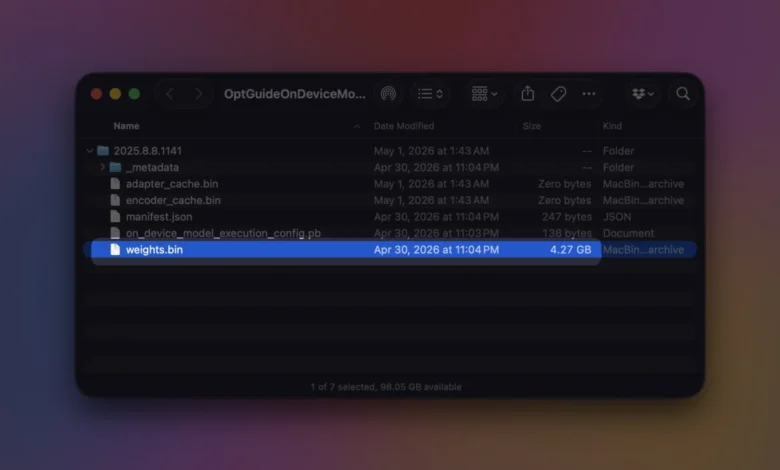
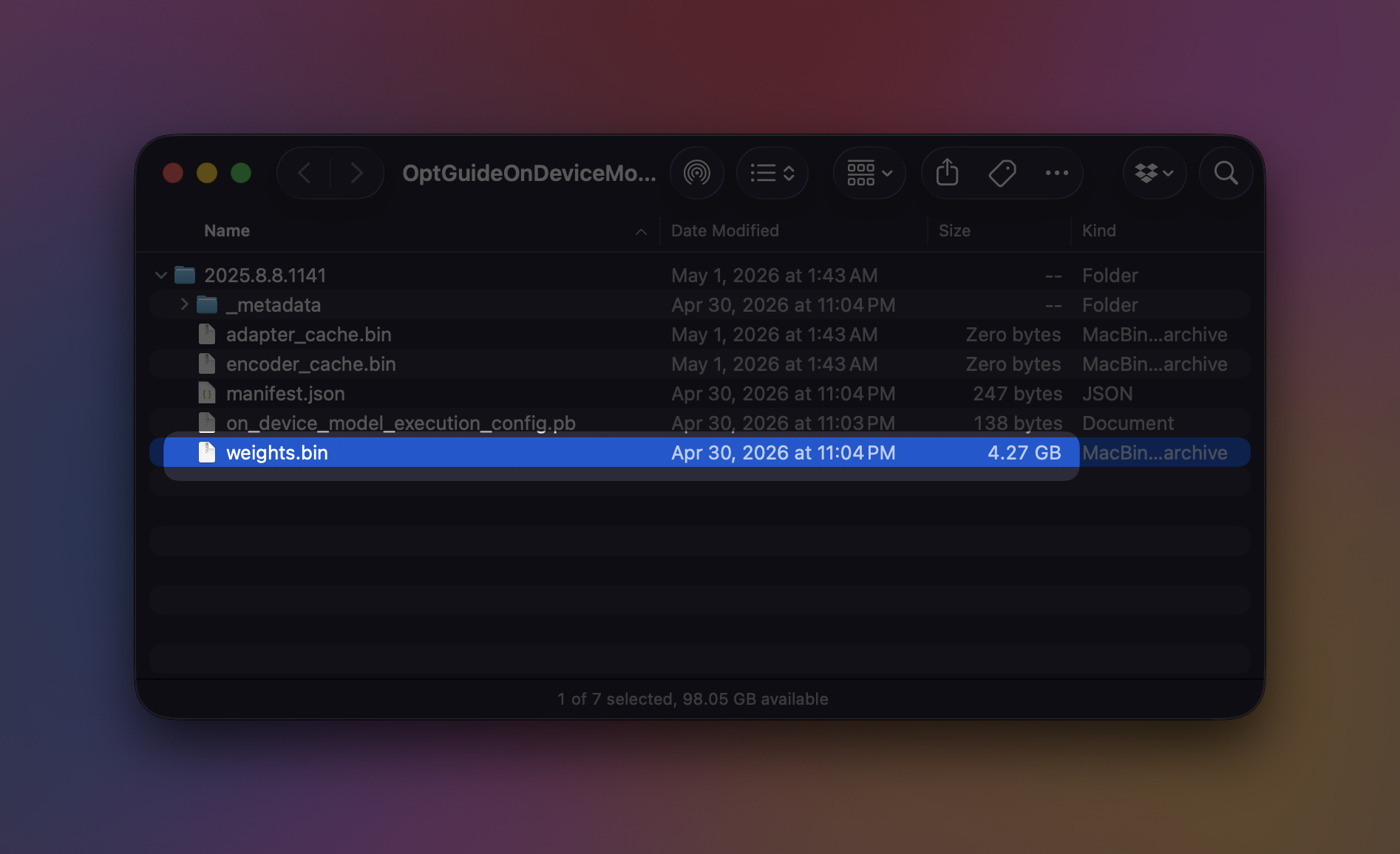
For users attempting to maintain lean, efficient computing environments, standard browser optimization practices—such as clearing cache data, managing extensions, and limiting active tabs—are no longer sufficient. Local AI integration requires a specialized storage audit. Central to this storage footprint is a specific file named weights.bin. This binary file resides deep within Chrome’s browser data directory, specifically nested inside a folder labeled OptGuideOnDeviceModel. This file acts as the physical manifestation of Gemini Nano, Google’s lightweight, on-device artificial intelligence model designed to operate locally on user hardware without relying entirely on remote cloud servers.
The weights.bin file is not arbitrary bloat; it serves as the foundational engine powering a suite of advanced browser functionalities. These features include automated writing assistance, real-time security warnings against phishing and scams, intelligent tab organization, automated webpage summarization, advanced autofill capabilities, and various contextual suggestion tools. Because Chrome executes these tasks locally on the user’s machine rather than routing every query through a remote data center, the browser must store the underlying neural network parameters directly on the host computer. Consequently, convenience and privacy features exact a direct toll on physical storage capacity.
The Mechanics and Rationale Behind Local AI Model Downloads
The transition toward on-device generative artificial intelligence represents a strategic shift in how software companies balance user privacy, operational latency, and cloud infrastructure costs. Historically, generative AI capabilities required constant communication with powerful remote servers. While effective, cloud-based processing introduces latency, consumes continuous bandwidth, and raises valid data privacy concerns regarding the transmission of user inputs to third-party servers.
By implementing Gemini Nano directly within the browser architecture, Google enables certain processing tasks to occur entirely on the local central processing unit (CPU), graphics processing unit (GPU), or dedicated neural processing unit (NPU). According to official documentation provided via Google’s Chrome Help resources, the browser may automatically download on-device generative AI models in the background. This preemptive download ensures that advanced features remain instantly accessible whenever a user invokes them, eliminating the delay of downloading model parameters on demand.
Google’s developer documentation notes that the physical footprint of Gemini Nano is dynamic. The exact file size fluctuates as Google pushes continuous updates, model refinements, and capability enhancements through standard browser update cycles. Depending on the specific version and optimization level of the model, the file size can easily scale into several gigabytes. For users operating on high-capacity desktop systems with terabytes of NVMe storage, this footprint is largely negligible. However, for owners of modern lightweight laptops or corporate workstations equipped with constrained 256-gigabyte solid-state drives (SSDs), a sudden multi-gigabyte reduction in available storage can significantly impact overall system performance and file management.
How to Audit and Locate Chrome’s On-Device AI Storage
Users who notice an unexplained reduction in available disk space can verify whether Gemini Nano is actively residing on their system by utilizing internal browser diagnostic tools. By navigating to a specialized internal URL within the address bar:
chrome://on-device-internals
Users can access a dedicated dashboard that outlines the current status, versioning, and storage allocation of any locally installed generative AI models. This interface provides transparency regarding what the browser is storing locally, offering real-time insights into model initialization and memory mapping.
For advanced users, developers, or system administrators wishing to inspect the physical files directly, the model data can be located within the operating system’s hidden application data directories. The directory path varies depending on the host operating system and the specific user profile configuration:
- Microsoft Windows:
C:Users<username>AppDataLocalGoogleChromeUser DataOptGuideOnDeviceModel<version>weights.bin - Apple macOS:
~/Library/Application Support/Google/Chrome/OptGuideOnDeviceModel/<version>/weights.bin
It is important to note that the <version> directory designation is dynamic and will automatically change as Google updates the underlying machine learning model during routine background browser updates.
Step-by-Step Guide to Removing Local AI Models
Users who determine that the storage cost outweighs the utility of Chrome’s local AI features can successfully purge these files from their systems. However, standard file management practices—such as manually deleting the weights.bin file—are ineffective on their own. If the underlying browser settings remain active, Chrome will recognize the missing file and automatically re-download the multi-gigabyte model in the background.
To permanently disable and remove Chrome’s on-device generative AI models, users must adjust their browser preferences through the official user interface. While the exact menu path may shift slightly across different browser releases, the setting is generally managed under privacy and performance configurations by toggling off the On-device AI or generative AI feature set.
Once disabled, Google’s system architecture triggers a cleanup routine that removes the associated generative AI models from local storage, reclaiming the occupied gigabytes. Naturally, disabling these features will cause dependent functionalities—such as local writing tools, smart tab grouping, and automated summarization—to cease functioning. However, the core operation of the web browser remains entirely unaffected, allowing users to browse the internet normally without local AI overhead.
System Requirements and Hardware Prerequisites
Not all computer systems are configured to support or download Chrome’s on-device AI models. The absence of the On-device AI toggle within browser settings typically indicates one of several underlying factors: hardware incompatibility, staggered feature rollouts, or enterprise policy restrictions.
Google’s official developer and support documentation outlines strict baseline hardware and software prerequisites for Gemini Nano APIs. Supported environments include:
- Windows 10 and Windows 11 operating systems equipped with compatible processing hardware.
- macOS 13 (Ventura) and subsequent versions.
- Supported Linux distributions.
- Certified Chromebook Plus devices.
Furthermore, Google enforces a strict volume threshold to prevent browser operations from destabilizing the host operating system. Specifically, the local disk volume containing the Chrome user profile must maintain a minimum of 22 gigabytes of free space for the model to download and initialize successfully.
If a system’s available storage drops below this threshold subsequent to the initial download, automated system logic permits Chrome to purge the model files dynamically to preserve operating system stability. The browser is designed to re-attempt downloading the model only when system storage requirements are once again met. For users troubleshooting broader storage constraints, utilizing dedicated disk space analysis utilities on Windows or macOS remains an effective method for identifying large auxiliary files across the broader system architecture.
Broader Implications and Industry Analysis
The revelation of Chrome’s heavy local storage footprint highlights a broader paradigm shift across the software industry. As artificial intelligence transitions from experimental cloud-based chat interfaces to deeply embedded operating system and browser features, the traditional boundary between application software and localized machine learning infrastructure is blurring.
For software developers, the inclusion of Gemini Nano provides a powerful suite of native APIs that allow web applications to execute complex natural language processing tasks client-side, reducing server costs and protecting user confidentiality by keeping data on the local machine. This architecture aligns with increasing regulatory scrutiny regarding cloud data transfers and user privacy mandates globally.
Conversely, for consumers and enterprise IT administrators, local AI integration introduces new management challenges. As browsers, operating systems, and productivity suites increasingly bundle multi-gigabyte models into standard updates, software bloat is shifting away from redundant code and asset files toward dense neural network weights. For power users and organizations managing fleets of constrained hardware, transparency regarding local resource allocation—ranging from RAM and CPU usage to physical disk storage—is paramount.
Ultimately, users are encouraged to evaluate their individual workflows. Those who regularly utilize AI-driven writing assistance, advanced tab management, and automated summarization tools will find the storage trade-off justified. Conversely, those who prioritize minimalist computing environments and tight storage margins can readily disable the feature via internal settings, ensuring their hardware remains optimized for traditional browsing tasks.