
Google Expands First-Party Data Tools and Introduces Data Strength Uplift Metrics Ahead of Q4 Holiday Rush

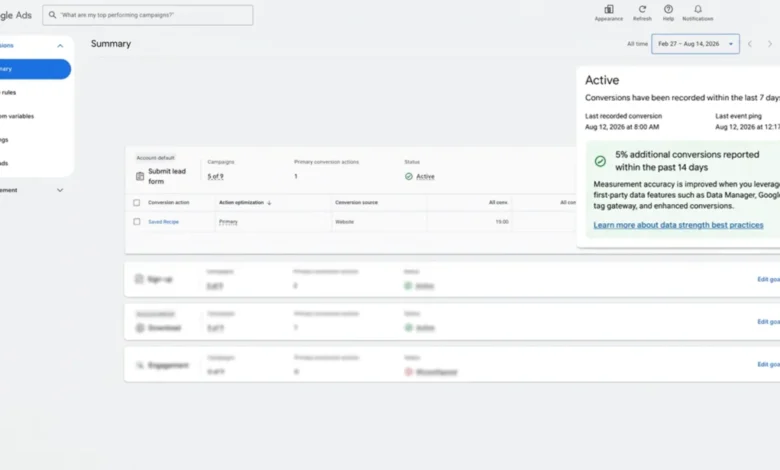
In preparation for the high-stakes fourth-quarter holiday shopping season, Google has announced a comprehensive suite of updates designed to streamline first-party data integration and measurement for advertisers. As digital advertising faces mounting pressure from privacy regulations, third-party cookie deprecation, and shifting consumer behavior, tech platforms are racing to provide robust alternatives. Google’s latest rollout addresses these industry-wide shifts by expanding its centralized Data Manager across additional core products, adopting universal industry standards for data APIs, and introducing a groundbreaking metric to quantify the value of enhanced measurement setups.
The announcement comes at a critical juncture for digital marketers. With holiday budgets representing a significant percentage of annual revenue for many retail, travel, and e-commerce brands, maximizing return on ad spend (ROAS) through precise attribution is more important than ever. By easing the technical friction associated with first-party data connections and providing clearer visibility into conversion recovery, Google aims to give advertisers the confidence they need to lean further into automated, machine-learning-driven bidding systems.
Main Facts of the Rollout
The suite of updates comprises three principal pillars: the expansion of Data Manager, the integration of the IAB Tech Lab’s Event and Conversions API (ECAPI), and the launch of the Google Ads Data Strength Uplift Metric.
First, Google is embedding Data Manager directly into Google Analytics (GA) and Display & Video 360 (DV360). Previously restricted in its deployment, Data Manager serves as a centralized hub where brands can consolidate various first-party data streams—including Customer Relationship Management (CRM) databases, offline sales metrics, and mobile app interactions. Alongside this integration, Google is rolling out enhanced conversions within GA and DV360, allowing cross-platform users to bypass repetitive setup procedures.
Second, the underlying infrastructure of the Data Manager API is receiving a major standardization upgrade. By adopting the Interactive Advertising Bureau (IAB) Tech Lab’s ECAPI, Google is aligning its data pipelines with a broader industry standard. This transition is intended to ease the operational burden on enterprise-level marketing teams that manage multiple advertising ecosystems simultaneously.
Finally, Google Ads is introducing the Data Strength Uplift Metric. This analytical tool is designed to estimate the exact volume of "recovered" conversions—interactions that previously went unmeasured due to gaps in tagging or tracking infrastructure, but which are now successfully captured through improved first-party data setups.
Chronology and Background Context of the Shift
To understand the weight of Google’s latest updates, one must examine the broader chronology of the digital advertising landscape over the past half-decade. The ongoing erosion of third-party cookies—spearheaded by Apple’s App Tracking Transparency framework and Google’s own evolving privacy initiatives—has fundamentally disrupted traditional digital attribution.
For years, advertisers relied heavily on third-party cookies to track user journeys across the web, attribute conversions, and optimize programmatic bidding. As those tracking mechanisms fade, the onus has shifted entirely to first-party data: information collected directly from consumers with their explicit consent.
Google’s response to this privacy-first paradigm began in earnest with the introduction of enhanced conversions and Customer Match capabilities. Over the subsequent years, the tech giant recognized that while advertisers were willing to collect first-party data, the technical pipelines required to feed that data back into advertising platforms were cumbersome, error-prone, and siloed.
To solve this fragmentation, Google initially rolled out Data Manager as a unified hub. However, its isolation from key reporting interfaces like Google Analytics and Display & Video 360 limited its utility for complex enterprise accounts. The current 2026 autumn expansion marks the culmination of a multi-year strategy to unify Google’s marketing stack around centralized, first-party data inputs, arriving just in time to assist brands managing peak-season traffic surges.
Supporting Data and Performance Metrics
Google’s rollout is backed by internal data designed to illustrate the tangible financial and operational benefits of adopting these new measurement tools. According to the company’s published impact studies, advertisers who successfully connect offline and app data sources through Data Manager experience an average increase of 26% in incremental ROAS.

Furthermore, data strength optimization via the Google tag gateway yields an average 14% conversion uplift. While individual results vary depending on the baseline maturity of an advertiser’s existing tracking architecture, these figures highlight the hidden revenue potential locked inside unoptimized data streams.
The newly introduced Data Strength Uplift Metric directly addresses a long-standing frustration among media buyers: the inability to prove the return on investment (ROI) of backend engineering work. Historically, when a brand invested time and developer resources into implementing enhanced conversions, cleaning up tagging structures, or piping CRM data into ad platforms, the resulting bump in reported conversions was ambiguous. It was nearly impossible to determine whether the campaign was simply performing better or if the tracking tool was merely capturing conversions that were already happening but previously remained invisible to the algorithm.
By estimating recovered conversions explicitly, the Data Strength Uplift Metric provides a quantifiable benchmark for technical improvements. It helps marketing teams justify ongoing engineering expenditures to executive leadership by drawing a direct line between data infrastructure investments and reported performance gains.
Official Responses and Industry Implications
While Google has framed these updates as a victory for advertiser control and algorithmic efficiency, reactions from the broader digital marketing and privacy communities are nuanced.
Industry analysts generally praise the adoption of the IAB Tech Lab’s ECAPI standard. For multi-channel enterprises, maintaining bespoke API connections for every distinct advertising platform consumes immense engineering bandwidth. By moving toward a universal standard, Google is reducing technical overhead and encouraging broader industry adoption of server-side tracking and advanced conversion APIs.
However, experienced media buyers and performance marketers are issuing cautionary notes regarding the interpretation of the new Data Strength Uplift Metric. A recurring theme in expert analysis is that a higher volume of recovered conversions does not automatically equate to superior business outcomes.
A conversion, by definition, is simply an action taken on a digital property—be it a form fill, an app download, or a purchase. Recovering lost data points increases the total count visible to Google’s automated bidding algorithms, which feed on this data to optimize future ad delivery. Yet, if the underlying data fed into the system consists of low-quality leads or unprofitable transactions, optimizing for a higher quantity of conversions can ultimately degrade campaign profitability rather than enhance it.
Consequently, marketing strategists emphasize that the new metrics must not be viewed in a vacuum. Advertisers are urged to maintain rigorous downstream tracking, connecting platform-reported conversions directly to enterprise CRM data, customer lifetime value (LTV), profit margins, and actual revenue generation.
Broader Impact on Automated Bidding and Future Strategies
The underlying philosophy driving Google’s product roadmap is clear: the future of digital advertising belongs to machine learning, and machine learning requires massive volumes of clean, structured first-party data to function effectively.
Smart Bidding, Performance Max, and other automated campaign types rely almost entirely on the quality of the signals they receive. If an advertiser provides incomplete, fragmented, or delayed data, the machine learning models operate with blind spots, potentially bidding on suboptimal inventory or misallocating budgets.
By lowering the barrier to entry for robust data integration through Data Manager expansion and universal API standards, Google is attempting to upgrade the overall quality of inputs entering its automated ecosystem. Better inputs lead to better algorithmic decisions, which theoretically result in higher campaign performance for advertisers—and, consequently, sustained ad spend on Google’s network.
For businesses navigating the complexities of modern digital marketing, these updates serve as both a tool and a reminder. The technical plumbing of advertising—tagging, data management, API maintenance, and signal hygiene—is no longer just an IT concern; it is a core driver of marketing performance.
As the digital ecosystem continues to evolve away from legacy tracking methods, brands that successfully integrate their first-party data assets into centralized tools like Google Data Manager will likely hold a competitive advantage. However, technology alone cannot solve the fundamental challenge of alignment. To truly capitalize on these advanced measurement tools, advertisers must ensure that the signals they feed into Google’s algorithms accurately reflect their most profitable, high-value business outcomes.